
The right setting for every product.
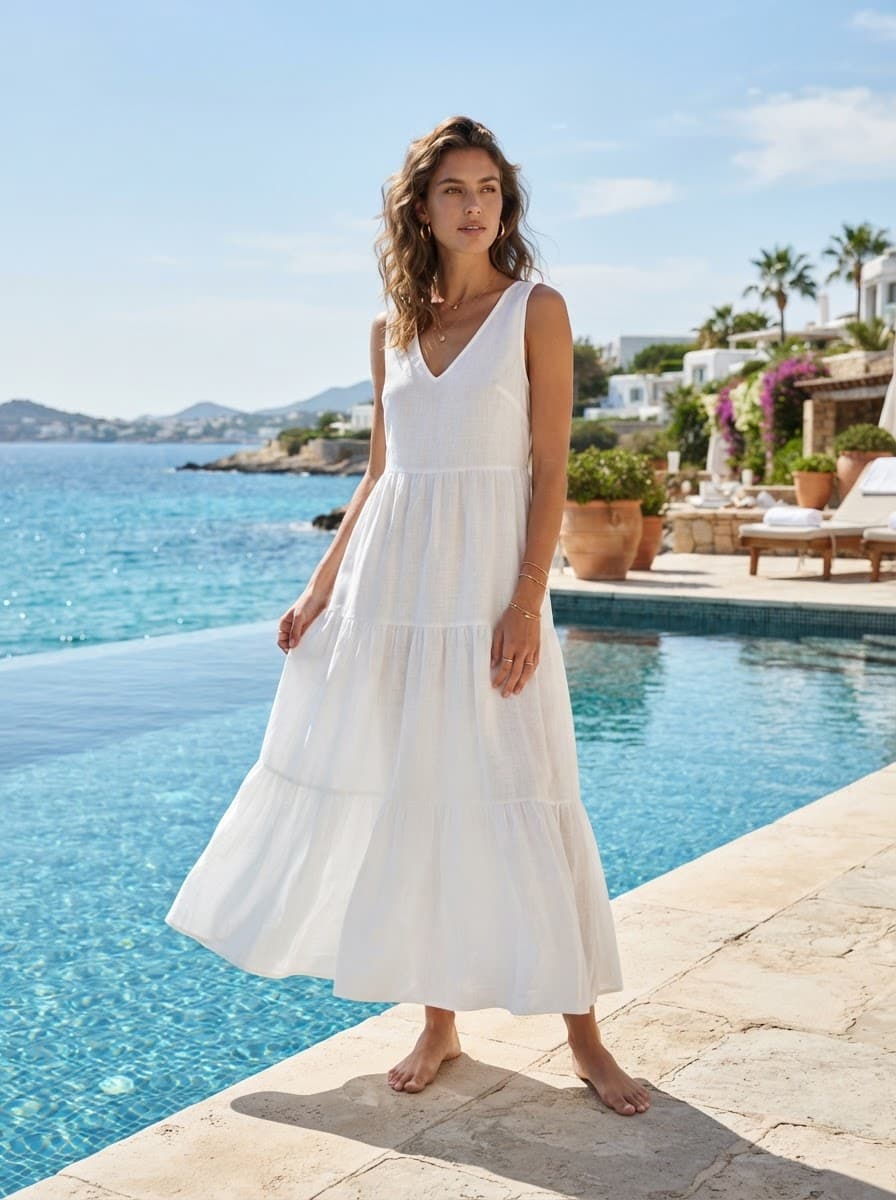
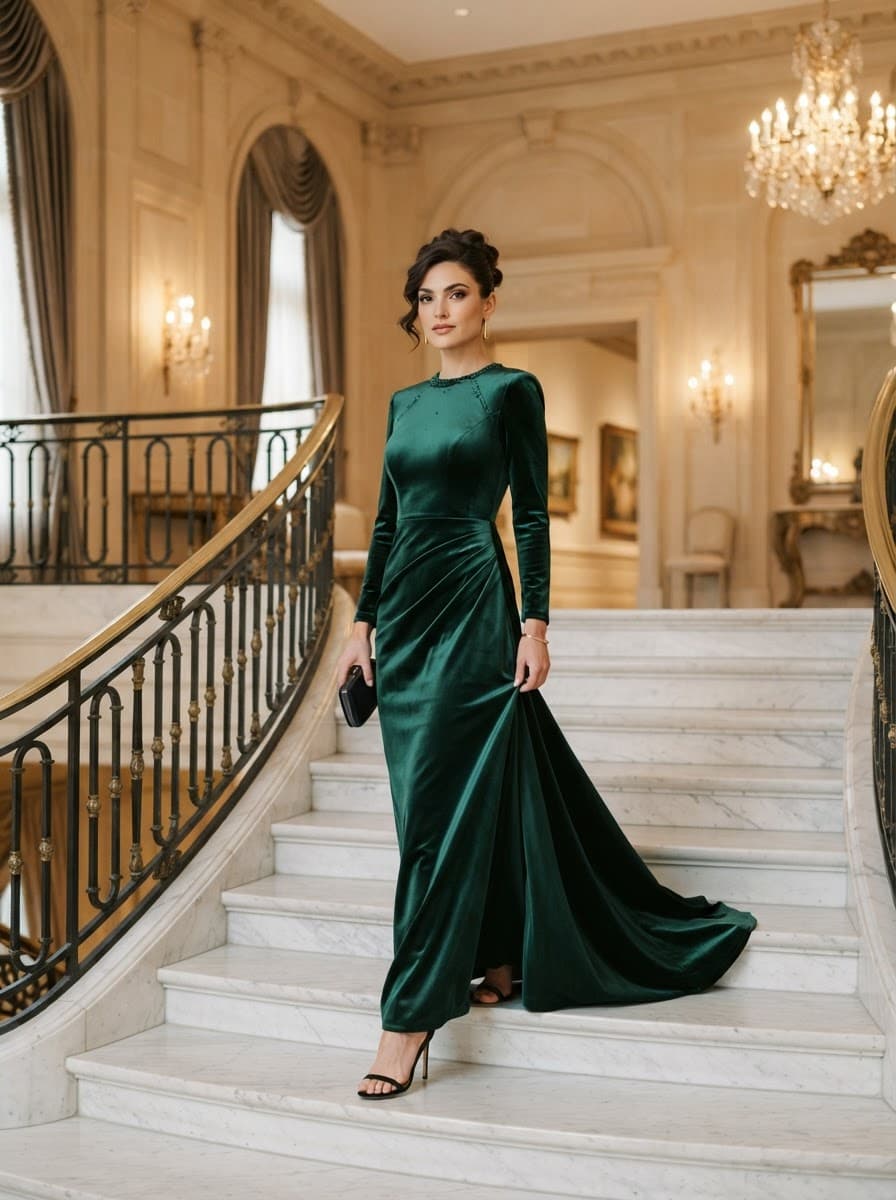
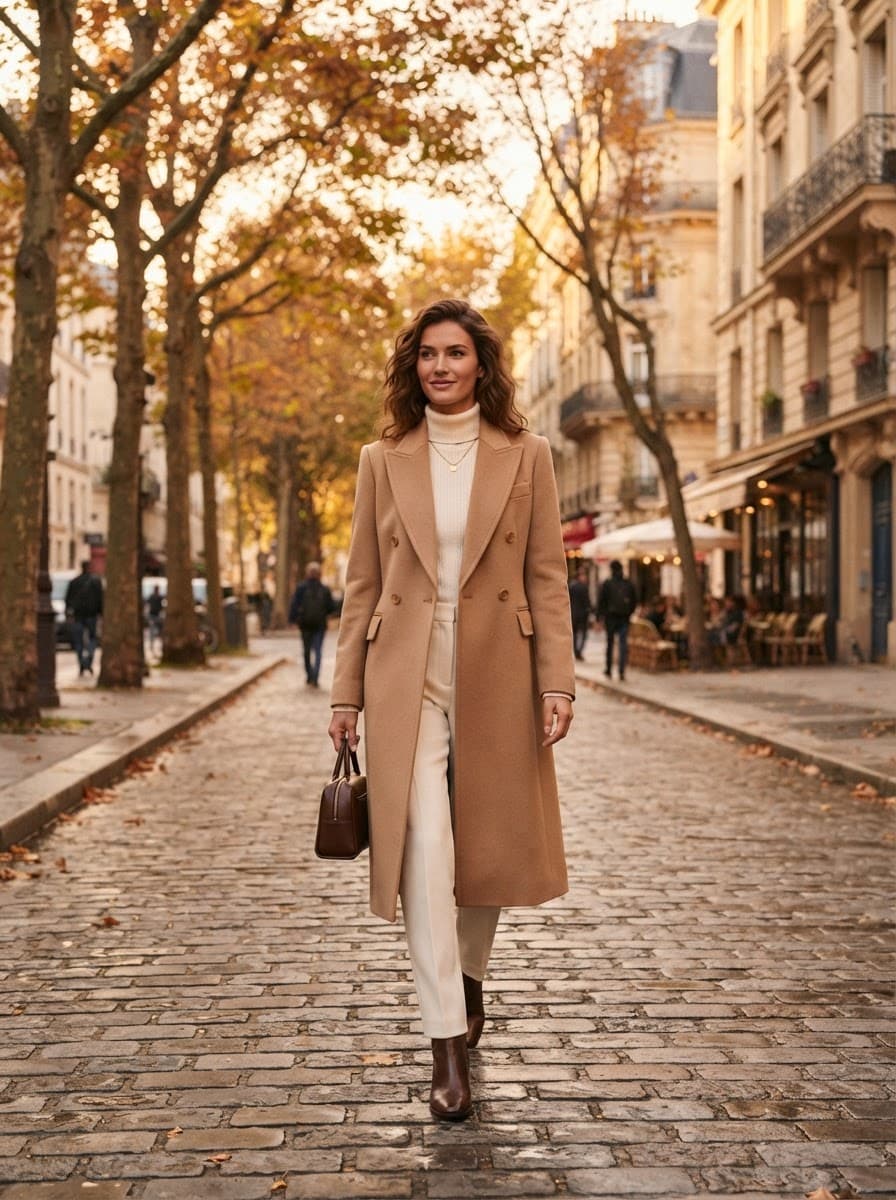
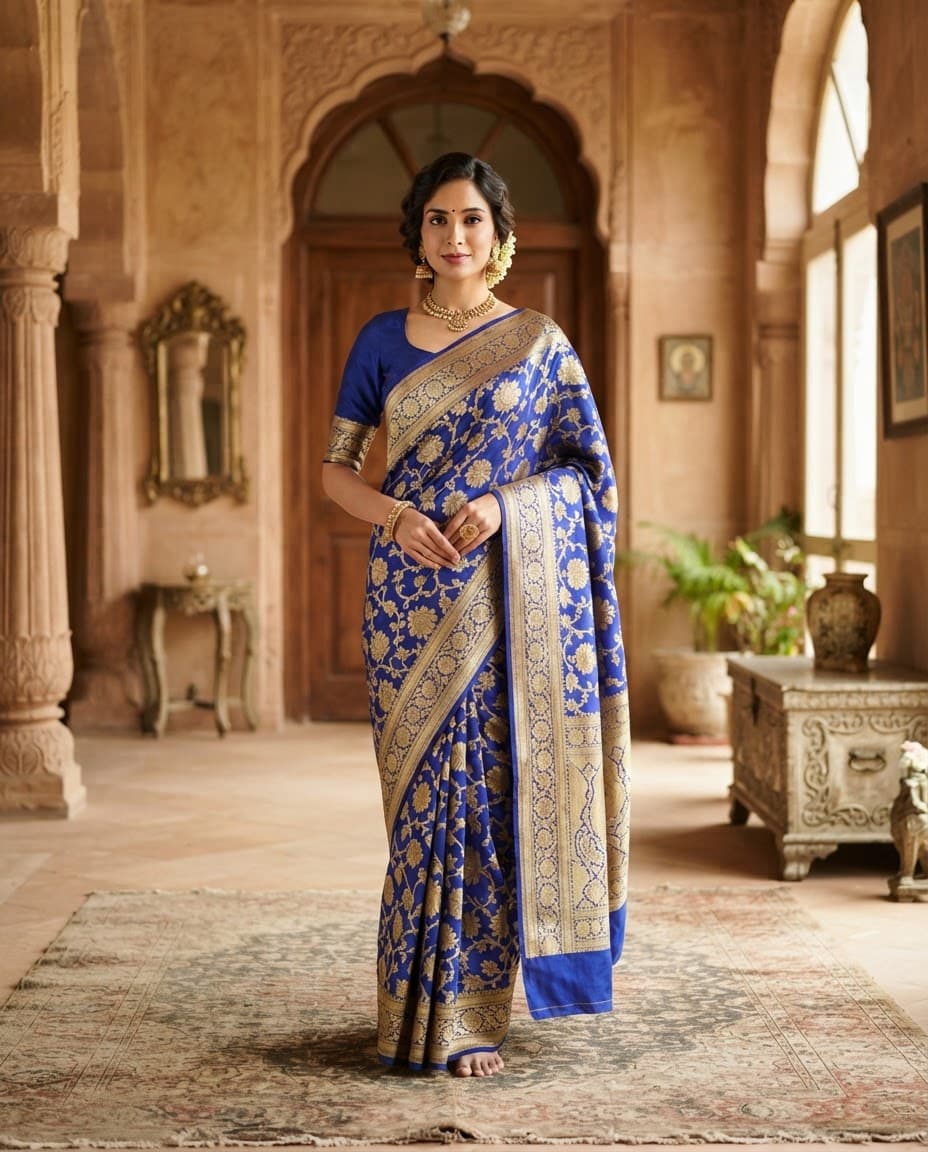
A sunlit terrace for the summer edit, a palace courtyard for bridal, an autumn street for outerwear. Pixigen chooses a setting that suits each product's occasion — or follows the one you give it.
Four ways to set the scene
Matched to the occasion
The default: Pixigen reads what the product is for — a wedding, a festival, a brunch — and builds a setting that fits.
Your reference scene
Upload a photo of a place or mood and the new setting, lighting and palette are taken from it — useful for keeping a campaign consistent.
A scene you describe
Type a line of direction — "sunlit Mediterranean terrace", "minimal concrete gallery" — and it guides the setting.
Your original setting
Like the background you shot on? Choose to keep it and the new images recreate it.
Scenes that match the collection
Lifestyle imagery sells an occasion, not just a garment. Resort wear belongs by the water, evening wear on a staircase, outerwear on a street in autumn.
The background choice is made per upload, so a collection uploaded together can share one direction.
Frequently asked questions
Can I use my own background image?
Yes. Upload a reference photo and the new setting is generated from it.
Can I keep my original background?
Yes. Choose to keep the original background and the generated images recreate the setting from your photo.
Can I get a plain studio background?
Describe it — for example "plain light-grey studio backdrop" — and it is used as direction for the scene.
Does this work in bulk?
Yes — the background choice applies to the whole upload, so a batch of products can share one direction.
Every product deserves a proper page.
Start with five products free. See what a finished listing looks like — on-model images, attributes, copy and SEO — before you pay anything.